

How it works
- Using the dashboard
- Using the API
After adding a trigger, create a new step to Send an email.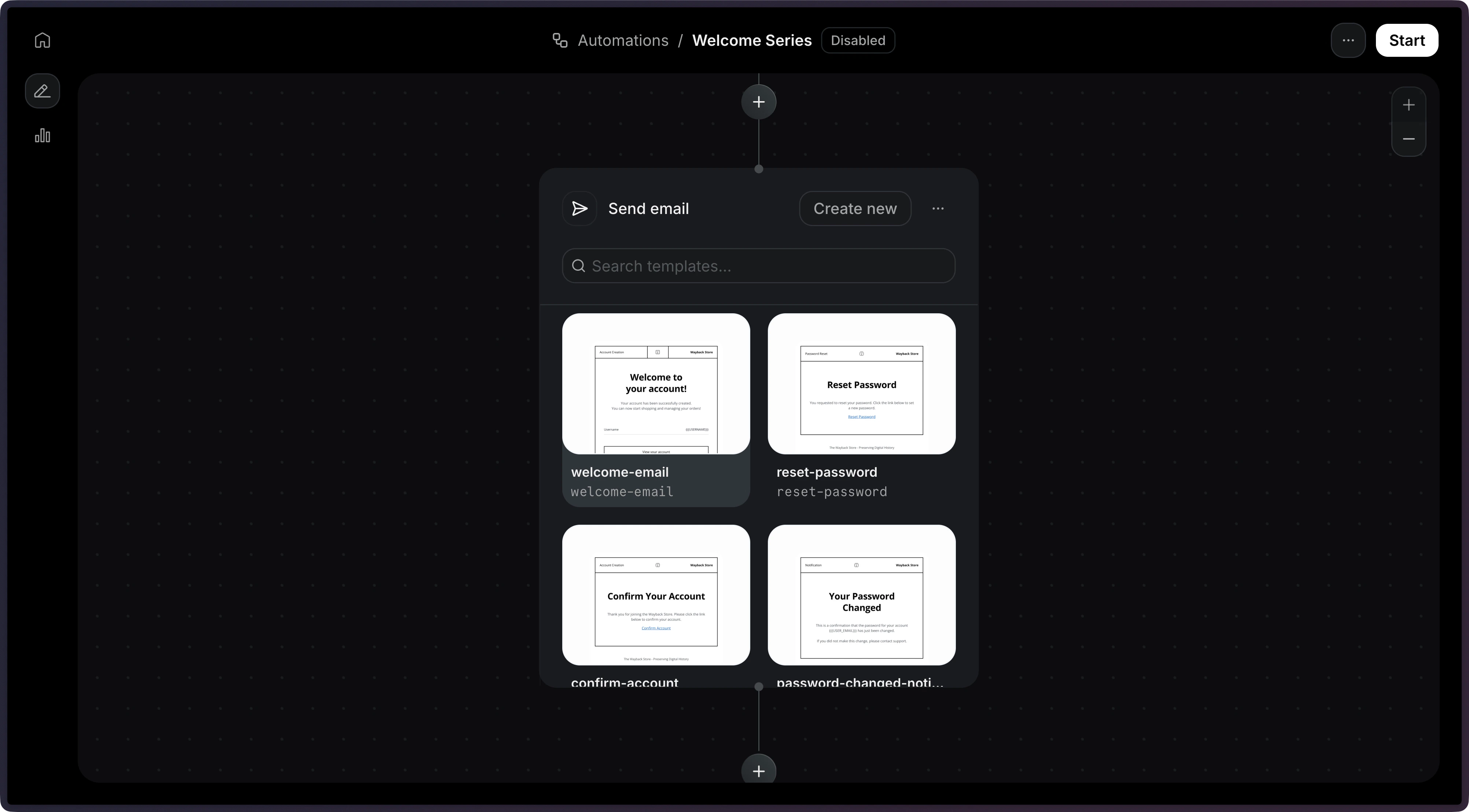
subject when creating the step via the API.Only
published templates are available to be used in an Automation.Template variables
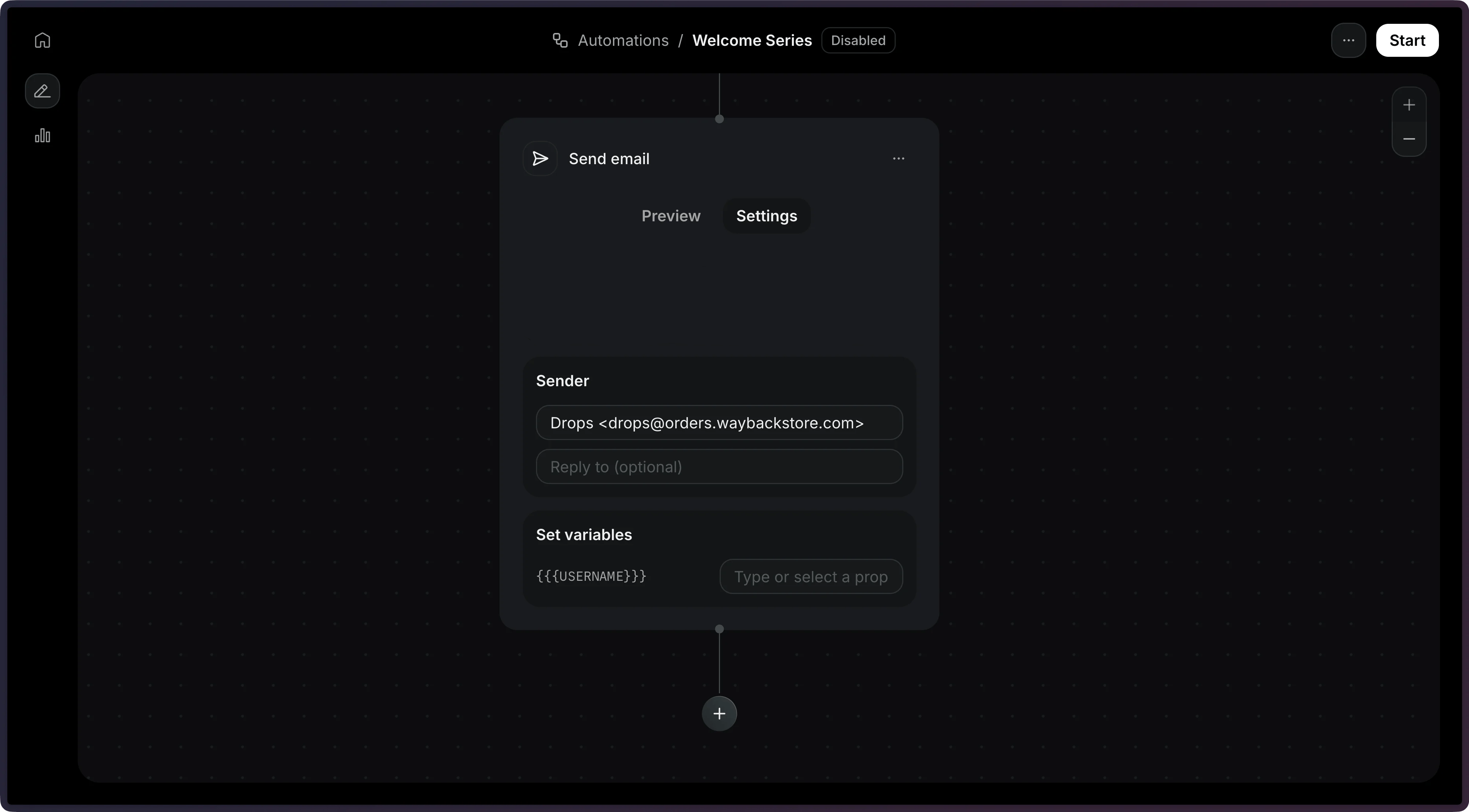
Use thevariables field to pass data into your template. Each value is a static string, passed as-is, or a reference with { "var": "<path>" }:
event.*is a field from the event that triggered the Automation, such asevent.firstName.contact.*is a field from the contact, such ascontact.properties.company.wait_events.<event_name>.*is a field from an event a previous wait for event step received, such aswait_events.feedback.received.response. If the Automation waited for that event more than once, this is the most recent one before this step.
Send with a Topic
Settopic_id to send the email only to contacts subscribed to a Topic. This lets contacts opt out of one kind of Automation email, like product tips, while still receiving others.
- Opted in: the email is sent.
- Opted out: the step is skipped and no email is sent. The Automation continues to the next step.
- No preference: the Topic’s default subscription decides. The email is sent if the default is
opt_in, and the step is skipped if it’sopt_out.
422 error.
Unsubscribe behavior
Resend does not automatically add an unsubscribe link to emails sent from asend_email step. To let contacts opt out, add {{{RESEND_UNSUBSCRIBE_URL}}} to the Template used by the step.
{{{RESEND_UNSUBSCRIBE_URL}}} must be added to the Template itself, not the step’s config. If the Template doesn’t include this variable, contacts have no way to unsubscribe from within the email.{{{RESEND_UNSUBSCRIBE_URL}}}, Resend handles unsubscribes as follows, with or without a Topic:
- Global unsubscribe always wins. A contact who is unsubscribed never receives Automation emails, even if they have opted in to the step’s Topic.
- The unsubscribe link opens your preference page. It works the same as the Broadcast unsubscribe link.
- One-click unsubscribe is global. Resend also adds
List-UnsubscribeandList-Unsubscribe-Postheaders, which inbox providers like Gmail show as an unsubscribe button. Using that button unsubscribes the contact from all Broadcasts and Automation emails, not only the step’s Topic.
Configuration
The ID of the Topic this email belongs
to. Contacts not subscribed to the Topic skip this step. See Send with a
Topic.